
You can invoke the most common MYOB Acumatica ERP operations through keyboard shortcuts.
Form toolbar shortcuts
These work on the toolbar at the top of a form.
| Key | What it does |
|---|---|
| Esc | Depending on context, either discards unsaved changes and reloads the last saved version, or clears changes and restores defaults |
| Ctrl+Insert | Starts a new record, clearing the form and applying default values |
| Ctrl+Delete | Deletes the current record and resets the form to defaults. Only works where the document is not linked to another document |
| Ctrl+S | Saves your changes |
| Page Up | Moves to the previous record |
| Page Down | Moves to the next record |
Field and summary area shortcuts
These apply in the summary or selection area at the top of a form.
| Key | What it does |
|---|---|
| Tab | Moves to the next field |
| Shift+Tab | Moves back to the previous field |
| F3 | Opens the lookup list when the cursor is in a lookup field |
| Ctrl+Left Arrow | Moves to the start of the next segment in a segmented field, such as a subaccount |
| Ctrl+Right Arrow | Moves to the start of the previous segment in a segmented field |
| Ctrl+Shift+L | Opens the translations box on multi-language fields, where multilingual input is enabled |
| Ctrl+Enter | New in the Modern UI. Inserts a line break in a multiline text box. In the Modern UI, pressing Enter moves the focus to the next control instead of adding a line, unless the field has been configured otherwise |
Table navigation shortcuts
| Key | What it does |
|---|---|
| Arrow keys | Move one cell up, down, left or right |
| Tab | Moves to the next field in the current row |
| Shift+Tab | Moves back to the previous field in the current row |
| Home | Jumps to the first column in the row |
| End | Jumps to the last column in the row |
| Ctrl+Home | Jumps to the first row in the column |
| Ctrl+End | Jumps to the last row in the column |
| F5 | Refreshes the data when the cursor is in a cell |
| F6 | Sorts by the values in the selected column |
| Enter or F2 | Switches the cell into editing mode |
| F3 | Opens the lookup list when the cursor is in a lookup field |
| Shift+F | Changed in the Modern UI. With the cursor in a cell, adds a quick filter button for that column and filters the table by the value in that cell |
| Double-click below the last row | Adds a new row |
| No longer applies in the Modern UI. Table data is presented in a single view, so there is no grid and form toggle to switch between |
Search and menu shortcuts
| Key | What it does |
|---|---|
| Ctrl+Q | Puts the cursor in the search box |
| Alt+G | Opens the workspace for the form, dashboard or report you currently have open |
| Esc | Closes an open workspace |
Date and calendar shortcuts
When the calendar dialogue is open:
| Key | What it does |
|---|---|
| Left Arrow | Previous day |
| Right Arrow | Next day |
| Up Arrow | Back one week |
| Down Arrow | Forward one week |
| Enter | Selects the date and closes the dialogue |
When the cursor is in a date field, on the relevant part of the date:
| Key | What it does |
|---|---|
| Up Arrow, or plus | Increases the selected part of the date by one |
| Down Arrow, or minus | Decreases the selected part of the date by one |
| Full stop, forward slash, or Right Arrow | Moves to the next part of the date |
| Shift plus full stop, Shift plus forward slash, or Left Arrow | Moves back to the previous part of the date |
Both the numeric keypad and the main keyboard versions of the plus, minus, full stop and slash keys work.
How filtering works in the Modern UI
This is the part of the page most in need of updating, because the filtering area has been redesigned. It is worth ten minutes of anyone's time.
The filtering area
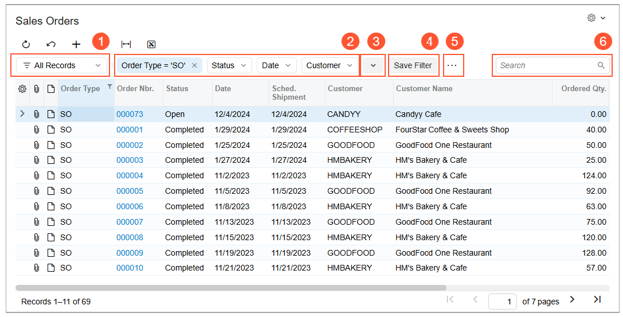
Sitting above a list of records, the filtering area contains a small set of controls:
- The filter list button, which opens your saved personal and shared filters
- Quick filter buttons, one per field you are filtering on
- The add quick filter button, which adds another field or opens the advanced filter editor
- The save filter button, which appears when the current filter has not yet been saved
- A menu button, for the filter management commands
- A search box, which highlights cells containing your search term. By default it uses a contains condition and accepts up to 100 characters
Quick filters, four ways to add one
You can apply several quick filters at once, and each one gets its own button in the filtering area. To add one:
- Drag a column header into the filtering area
- Click the add quick filter button and choose the field
- Click the column header, set the conditions and value, then apply
- Put the cursor in a cell and press Shift+F, which filters by that cell's value
Clicking an existing quick filter button opens a menu where you can sort ascending or descending, change the criteria, clear the filter, or remove the button entirely. You can also drag the buttons into whatever order suits you.
Saving and sharing a filter
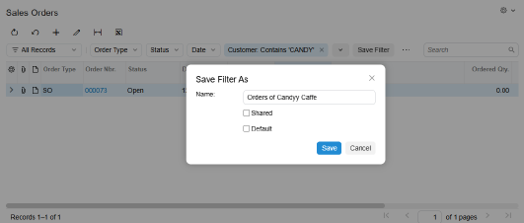
Click the save filter button, or use the save as command in the menu. Two options are worth knowing about in the dialogue:
- Default. Applies this filter automatically every time you open the form.
- Shared. Makes the filter available to other users. This requires access to the Filters form.
Saved filters then appear in the filter list drop-down. You can search the list by name, and star a filter to pin it to the top as a favourite. Shared filters are marked with their own icon so you can tell them from your personal ones.
The advanced filter editor
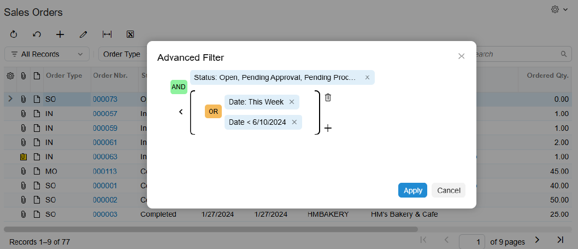
For anything more complex than a few conditions, the advanced filter editor lets you build criteria visually. Open it from the menu button, or from the add quick filter button by choosing advanced.
Inside it you can add fields, set conditions and values, switch the logical operator between AND and OR, and group criteria together so the order of operations is explicit. Grouped criteria show in brackets, much as you would write them out. Once applied, the advanced filter appears as a row in the filtering area.
This replaces the older filter settings dialogue, and it is considerably easier to follow when you are building something with several conditions.
Personalisation worth setting up once
Three small things that pay for themselves.
Column configuration. The settings button in the top left corner of a table opens the column configuration dialogue, where you can show and hide columns, drag them into your preferred order, and reset back to the default layout. There is also a per-column control over whether the column receives focus when you press Tab, which is the fastest way to speed up repetitive data entry. Turn off Tab focus for every column you never type in and your Tab key stops visiting fields you do not need.
Tab reordering. Drag a tab to move it. Drag it to the More button and then into the hidden tabs section to hide it, and drag it back out when you want it again. Layout changes are saved to your own user account and persist between sessions.
Collapsing field groups. Use the arrow icon in the form toolbar to collapse or expand groups of fields. The collapsed state is remembered for your account.
Three other Modern UI differences worth knowing
Not shortcuts, but they explain things people report as faults.
Errors and warnings appear in the top right of the form rather than as a browser pop-up. Informational messages are now colour highlighted so they are harder to miss. Where a table value is wrong, the whole row is highlighted as well as the cell.
A number replaced by hash characters means the column is too narrow. Hover over the cell to see the actual value, or widen the column. In the Classic UI the value was simply truncated, which was easier to misread.
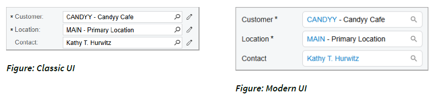
Lookup fields now show the selected value as a link. Click it to open the record on the form where it was created. This replaces the old edit button.
Some shortcuts are screen specific
Worth a short note so the page does not overpromise. A few shortcuts only apply on particular screens rather than across the system. For example, on the analytical report row sets screen you can copy and paste row formatting with Ctrl+Shift+C and Ctrl+Shift+V, and select multiple rows by holding Ctrl for individual rows or Shift for a range.
Where to go next
Internal links:
- MYOB Acumatica tips and tricks webinar
- Get the most out of MYOB Acumatica with these helpful tips and tricks
- Talk to us about training and support
Frequently asked questions
What are the keyboard shortcuts in MYOB Acumatica? The most used are Ctrl+S to save, Ctrl+Insert to start a new record, Ctrl+Q to jump to the search box, F3 to open a lookup, F5 to refresh table data, F6 to sort by a column, and Shift+F to add a quick filter based on the selected cell.
Has Shift+F changed in the Modern UI? Yes. Rather than simply filtering the table, placing the cursor in a cell and pressing Shift+F now adds a quick filter button for that column and filters by that cell's value.
Does F4 still switch between grid and form view? No. The Modern UI presents table data in a single view, so there is no grid and form toggle.
Why does pressing Enter not add a new line in a text box? In the Modern UI, Enter moves the focus to the next control by default. Use Ctrl+Enter to insert a line break in a multiline text box.
Where have my saved filter tabs gone? Saved personal and shared filters now appear in the filter list drop-down menu rather than as tabs across the top of the screen. Existing filters carry across when a form switches to the Modern UI, and you can star the ones you use most to pin them to the top of the list.
How do I share a filter with my team in MYOB Acumatica? When saving a filter, tick the shared option. This requires access to the Filters form, so check with your administrator if the option is not available to you.
Why is a number showing as hash characters in a table? The column is too narrow for the value. Hover over the cell to see the full number as a tooltip, or widen the column.
Disclaimer
Information provided in our blog posts is of a general nature and does not consider your personal situation. It does not constitute legal, financial, or other professional advice and should not be relied upon as a statement of law, policy or advice. You should consider whether this information is appropriate to your needs and, if necessary, seek independent advice. This information is only accurate at the time of publication. Although every effort has been made to verify the accuracy of the information contained in our blog, Avanza Solutions disclaims, to the extent permitted by law, all liability for the information contained on this webpage or any loss or damage suffered by any person directly or indirectly through relying on this information. Any blogs that relate to MYOB Acumatica aim to outline the general product direction of MYOB Acumatica. It is intended for information purposes only and may not be incorporated into any contract. It is not a commitment to deliver any material, code, or functionality, and should not be relied upon in making purchasing decisions.