
How much of your day is spent typing the same descriptions, vendor names, and standard phrases into your ERP? More than you'd probably like to admit. It's the kind of low-level friction that slows everyone down — and it adds up fast.
Autocomplete in MYOB Acumatica tackles this head-on. Using AI-powered predictive text, it offers intelligent suggestions as you type, helping you complete entries faster, with fewer errors, and a lot less repetitive effort.
What It Does
Predictive Text Across the Platform
Autocomplete works seamlessly across multiple modules in MYOB Acumatica. Whether you're entering invoices, filing expense reports, or writing journal notes, it offers real-time suggestions as you type. It's the kind of feature that feels small at first — until you realise how much time it saves across your entire team.
Suggestions That Learn From You
This isn't a one-size-fits-all autocomplete. The feature adapts to your unique patterns and preferences, tailoring its suggestions to the entries you typically make. If you regularly enter descriptions for a particular supplier or use standard phrases in your journal entries, Autocomplete picks up on that. The more you use it, the smarter it gets, progressively reducing the amount of manual input required.
Fewer Repetitive Keystrokes
By automating common phrases and frequently used text, Autocomplete cuts out the repetitive typing that eats into your day. Less typing means less fatigue, fewer mistakes, and more headspace for the work that actually requires your attention.
How to Enable It
Getting Autocomplete up and running takes just a couple of minutes:
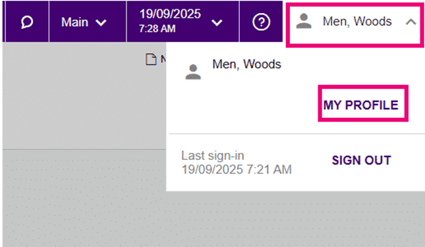
Step 1: Access My Profile. Select your username at the top-right of the screen and click My Profile.
Step 2: Enable Intelligent Text Completion. In the General Info tab, tick the Intelligent Text Completion checkbox.
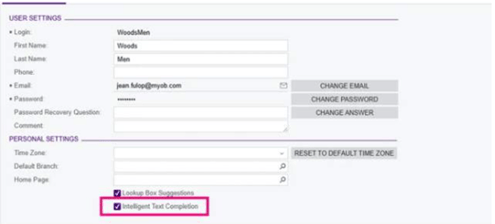
Step 3: Save your changes. Click Save — and that's it. You'll start seeing suggestions immediately.
Step 4: Review and refine. Over time, gather feedback from your team and make any adjustments to settings for optimal performance.
Where It Makes the Biggest Difference
Autocomplete shines brightest in the workflows your team repeats most often:
Invoice and bill entry — speeds up accounts payable and receivable by suggesting common vendor names, descriptions, and amounts. This keeps things consistent and reduces the time spent on repetitive data entry.
Expense reporting — offers suggestions for categories, vendors, and descriptions based on previous entries, streamlining the process and minimising errors in expense claims.
Journal entries and notes — helps you quickly insert standard phrases or frequently used explanations in narrative fields and memos, keeping documentation clear and consistent across your organisation.
A Small Change With a Big Impact
Autocomplete might seem like a minor feature, but its impact is anything but. Across a team, the time saved on repetitive typing adds up to hours each week — hours that can be redirected towards more meaningful, higher-value work. It also helps with data consistency: when the system suggests the same description or vendor name each time, you get cleaner data without having to enforce it manually.
It's one of those practical, everyday AI features that simply makes work smoother. And unlike big system changes that require training and adjustment, Autocomplete is intuitive from the moment you enable it — your team will wonder how they managed without it.
Watch our step-by-step demonstration video to see how Autocomplete works in MYOB Acumatica.
Turning on MYOB Acumatica's AI features
Before you can start using MYOB Acumatica's AI features, you need to go to the Enable/Disable Features screen (CS100000) and turn them on.
Log in to MYOB Acumatica as an administrator, and go to Enable/Disable Features (CS100000).
-
Click Modify.
The feature tickboxes become active.
-
Select all of the following features:
- Image Recognition for Expense Receipts
- AP Document Recognition Service
- Experimental Features
- Intelligent Text Completion
- Detection of Numberic Anomalies in Generic Inquiries
-
Click Enable to save the changes.
You're ready to start using the new features! For your next steps, see:
Getting started with intelligent text completion
Getting started with AP document recognition
Getting started with image recognition for expense receipts
Getting started with anomaly detection in generic inquiries