
AI Assistant is a chat window built into MYOB Acumatica that answers questions about your business in plain language, using your own live data. It's available from MYOB Acumatica 2026R1 (build 26.1.200). To switch it on, your administrator enables the feature, chooses and describes the Generic Inquiries it can use, processes them, and gives people the AI Assistant User role. Everyone keeps the same permissions they have today.
This guide covers everything you need, whether you're the person setting it up or the person who'll be asking it questions every day. Watch the on-demand webinar for the full walkthrough and live demo, then use the sections below as your step-by-step reference.
Watch the on-demand webinar
In this 25-minute session, I explain what AI Assistant is, show it in action with a real finance scenario, walk through setup step by step, and cover pricing, usage and security.
AI Assistant at a glance
| What it is | A chat window inside MYOB Acumatica that answers questions from your own data |
| Available from | MYOB Acumatica 2026R1, build 26.1.200 |
| Who can use it | All editions except Payroll standalone, and all user types except Employee licences |
| Where it gets answers | The Generic Inquiries your administrator exposes to it |
| What it returns | Text, tables, lists, charts and pivot tables, with links to the records |
| Security | Uses your existing role-based permissions. Data is stored in Australia |
| What it costs | A minimum AI capacity is included with your subscription. More can be added in blocks of 500 AI Units a month |
| What it doesn't do | Change data. It's read-only |
What is AI Assistant?
AI Assistant lets you ask MYOB Acumatica a question the way you'd ask a colleague, and get an answer back in seconds. No report builder, no query syntax, and no exporting to Excel to piece things together.
Think about the questions that usually mean asking the one person who knows where the data lives, or waiting for someone to build a report: who are our top customers this year, what's overdue on receivables, which orders are waiting to ship. Those can now be answered right there in the platform.
Three things make it different from a general AI chatbot:
- It answers from your data. AI Assistant looks only at the Generic Inquiries your administrator has chosen to expose to it, so you stay in control of what it can see.
- Your permissions still apply. It respects the role-based security you already have. Nobody sees anything they couldn't already see through their normal access.
- You can check every answer. Each answer names the inquiry it came from, and record numbers in the answer are links straight to the records.
What kinds of questions can it answer?
AI Assistant handles:
- Lookups: "What's the status of sales order SO012345?"
- Totals: "What is this month's total income?"
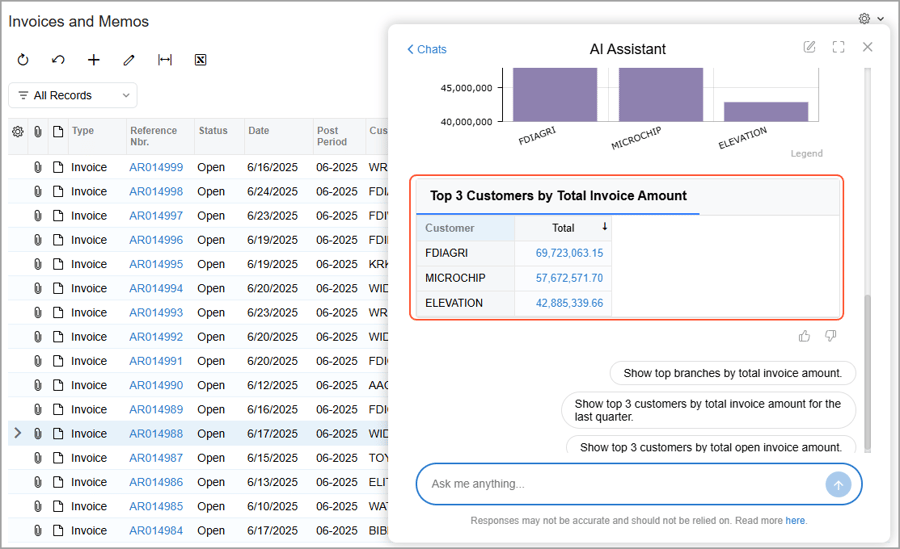
- Rankings: "Show top 3 customers by the total invoice amount"
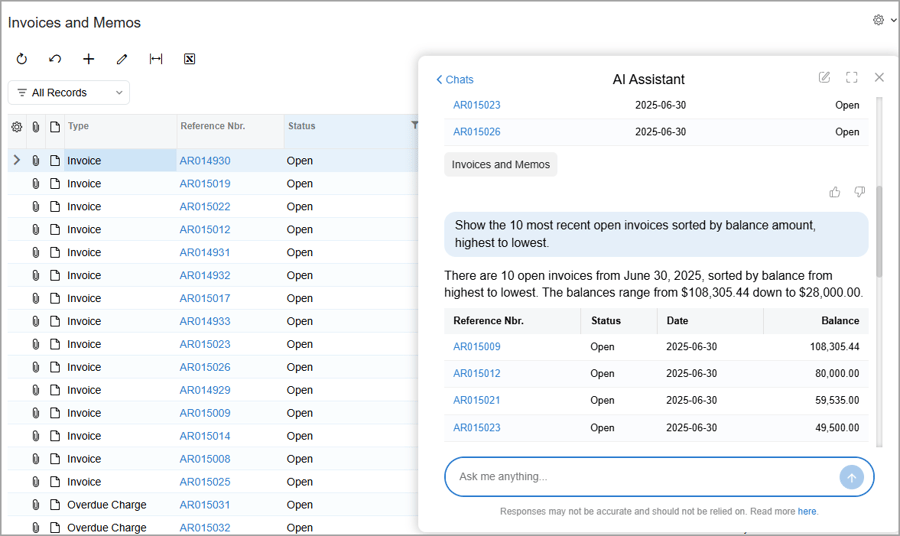
- Filtered questions: "List open invoices with a balance greater than $5,000"
- Follow-ups and multi-step investigations in the same chat, where each question builds on the last
You don't need to know which inquiry holds the data or what the fields are called. AI Assistant works that out from the descriptions your administrator gives each inquiry. If you ask it to do something it can't, like post a payment, it will tell you rather than guess.
What does an answer look like?
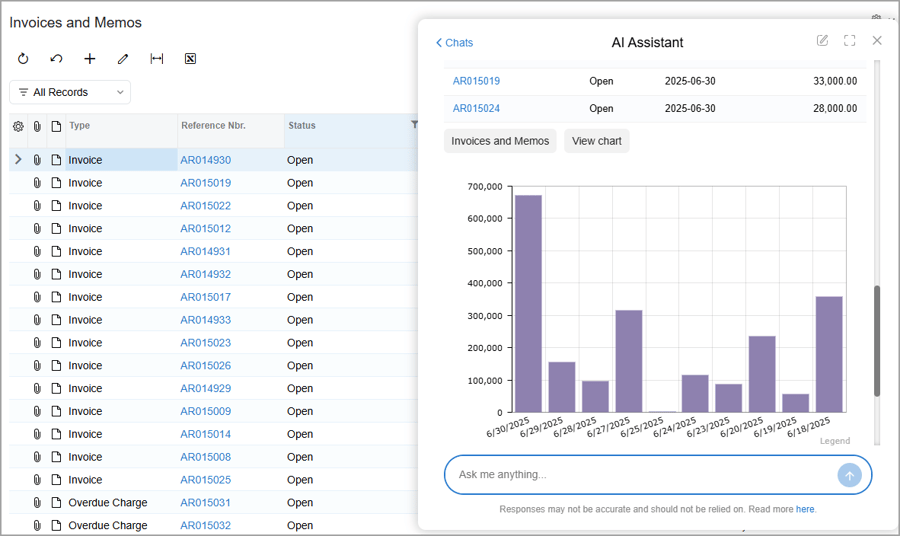
The format depends on your question and the data available. A summary question gets text, a "list" question gets a table, and where the data suits it you'll get a chart or a pivot table. Many answers combine all three, followed by suggested follow-up questions.
Before you start
Have these five things in place before you set up AI Assistant.
- You're on MYOB Acumatica 2026R1, build 26.1.200 or later. Existing customers get AI Assistant as part of their upgrade.
- Your edition and users are eligible. All editions except Payroll standalone, and all user types except Employee licences.
- You've chosen an AI administrator. We recommend one named person who owns switching it on, user access, and which data AI Assistant can use.
- The Generic Inquiry screen opens in the Modern UI. Only the Generic Inquiry screen (SM208000) needs the Modern UI, because that's where the AI settings are. Your whole site doesn't need to be converted.
- You know which questions matter most. List the questions your team asks most often, then work back to the inquiries that hold that data. That's your starting list.
How to set up AI Assistant: step by step
Setup takes six steps. If you're the administrator, have this guide open next to your system.
| Step | What you do | Screen |
|---|---|---|
| 1 | Confirm your site is entitled and on the right release | Help > About |
| 2 | Enable the AI Assistant feature | Enable/Disable Features (CS100000) |
| 3 | Choose and describe the Generic Inquiries it can use | Generic Inquiry (SM208000) |
| 4 | Process those inquiries for AI Assistant | AI Assistant Data Processing (ML503010) |
| 5 | Give people the AI Assistant User role | Users (SM201010) |
| 6 | Test your AI Assistant |
Step 1: Confirm entitlement
Check that your site is on build 26.1.200 or later and licensed for AI Assistant. Entitlement makes AI Assistant available on your site, but it doesn't switch it on for anyone. That's up to you.
Step 2: Enable the AI Assistant feature
- Open Enable/Disable Features (CS100000).
- Click Modify.
- Find AI Assistant in the list and select its check box.
- Click Enable to save.
Tip: If you can see other AI features in the list, such as AI Studio, but AI Assistant is missing, the licence probably hasn't been applied to your site yet. Get in touch with us and we'll raise it with MYOB.
Step 3: Choose and describe your Generic Inquiries
This is the step that makes the biggest difference to the quality of your answers.
Out of the box, MYOB exposes a set of the most popular inquiries, so AI Assistant has something to work with from day one. You can add inquiries to this set or remove them at any time.
To expose an inquiry:
- Open Generic Inquiry (SM208000) and select the inquiry in the Inquiry Title box.
- Make sure the inquiry is published to the UI. It must appear in your menus before AI Assistant can use it.
- On the Interface Options tab, select Expose to AI Assistant.
- Click Save.
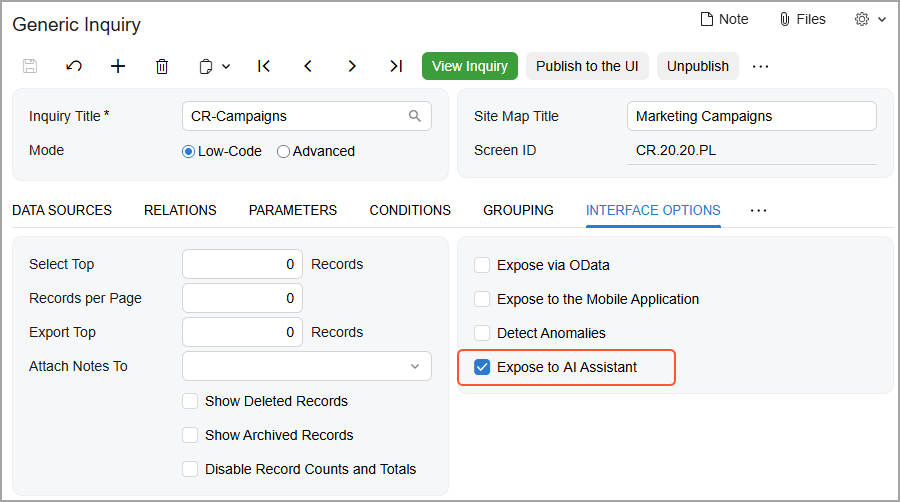
To describe it:
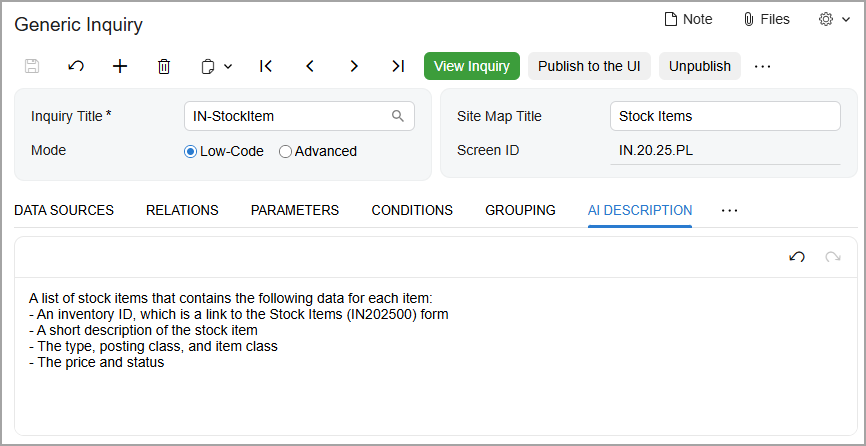
- On the AI Description tab (called Description for AI in MYOB's help), write a short explanation of what the inquiry is for.
- On the Results Grid tab, use the AI Description column to describe the fields people are most likely to ask about.
- On the Parameters tab, add a short instruction for each parameter, for example: Select the date up to which open invoices are included.
- Click Save.
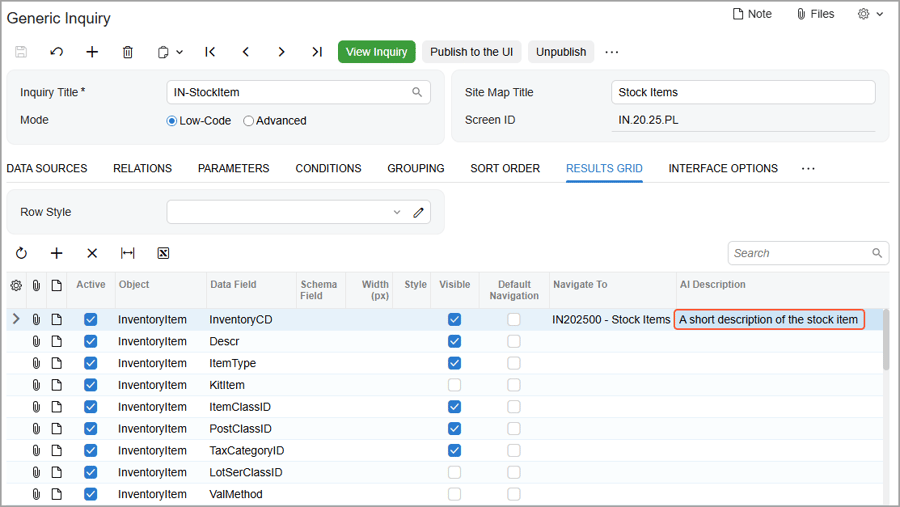
Descriptions are optional, but they're what helps AI Assistant pick the right inquiry and understand your data. When the words in a description match the words your team uses in a question, AI Assistant is much more likely to find the right answer.
If your site uses more than one language: you can add localised versions of the descriptions on the AI Description tab.
How to write descriptions that get better answers
- Use your business language. If your team says "jobs" rather than "projects", or "debtors" rather than "customers", say that in the description. That's how people will ask.
- Keep it short and specific. One or two sentences on what the inquiry is for and when to use it.
- Describe the fields that matter. Focus on amounts, dates, statuses and owners: the things people actually ask about.
- List what's in it. A short list of the key data in each row works well, as in the Stock Items example above.
- Check custom inquiries. Make sure the right roles have access, and give them clear descriptions, because AI Assistant has nothing else to go on.
Here's an example for an open invoices inquiry. Swap the field names for your own.
| Where | Example description |
|---|---|
| AI Description tab (the inquiry) | Lists open customer invoices and how overdue they are. Use this to answer questions about who owes us money, overdue debtors, ageing and collections. |
| Results Grid: Customer | The customer (debtor) the invoice was raised for. |
| Results Grid: Balance | The amount still owing on the invoice. |
| Results Grid: Due Date | The date payment is due. Invoices past this date are overdue. |
| Results Grid: Days Overdue | How many days past the due date the invoice is. Use for ageing buckets such as 30, 60 and 90 days. |
| Parameters: As At Date | Select the date up to which open invoices are included. |
Important: Selecting Expose to AI Assistant on a standard MYOB inquiry counts as modifying it. That can affect whether the inquiry is updated automatically at a future upgrade. Keep a simple list of the standard inquiries you change, and talk to us before your next upgrade if you're unsure.
How to tell if an inquiry has been modified: there's no single flag. Check the Created By, Modified By, Created Date and Modified Date fields. An unchanged system inquiry shows admin as the creator and modifier with system dates. A later modified date or a different user means it's been changed.
Step 4: Process your inquiries for AI Assistant
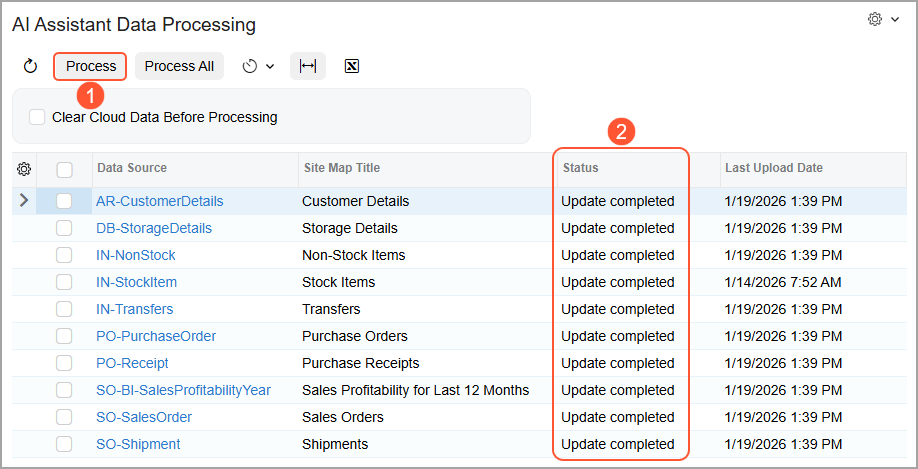
- Open AI Assistant Data Processing (ML503010). This screen lists every inquiry that's enabled for AI Assistant and its status.
- Select the inquiries you've changed and click Process, or click Process All.
- When the status shows Update completed, AI Assistant can use the inquiry.
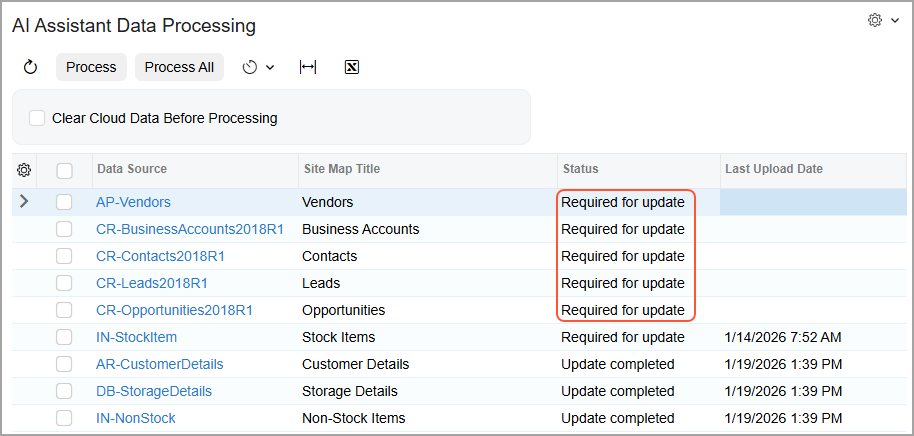
If you change an exposed inquiry later, its status changes to Required for update so you know it needs processing again.
A predefined schedule called AI Assistant GI Schema Upload processes changes automatically once a week. After you've improved a description, though, process it straight away so you can test the result.
Step 5: Give your people access
Site entitlement makes AI Assistant available, but each person still needs the role.
- Open Users (SM201010).
- Enter the person's username in the Login box.
- On the Roles tab, select AI Assistant User.
- Click Save.
The AI Assistant icon now appears in their top pane. Users with the Administrator and Acumatica Support roles already have access.
Our advice: there's no per-user licence, so you can switch it on for everyone. We suggest starting with a small group of champions, the people who ask the most questions. Learn what works, refine your descriptions, then widen access. That also helps you get the most from the capacity included in your subscription.
Step 6: Test it
Open AI Assistant and ask a question that one of your newly exposed inquiries should answer. Check the Sources link under the answer to confirm it used the inquiry you expected. If it didn't, improve the descriptions, process the inquiry again and ask once more.
How to use AI Assistant
Open AI Assistant and ask your first question
Click the AI Assistant icon  in the top pane. The chat opens with three suggested prompts:
- List 10 most recent open invoices
- What is last year's total revenue?
- Show top 3 customers by the total invoice amount
Click one to get started, or type your own question in the Ask me anything box.
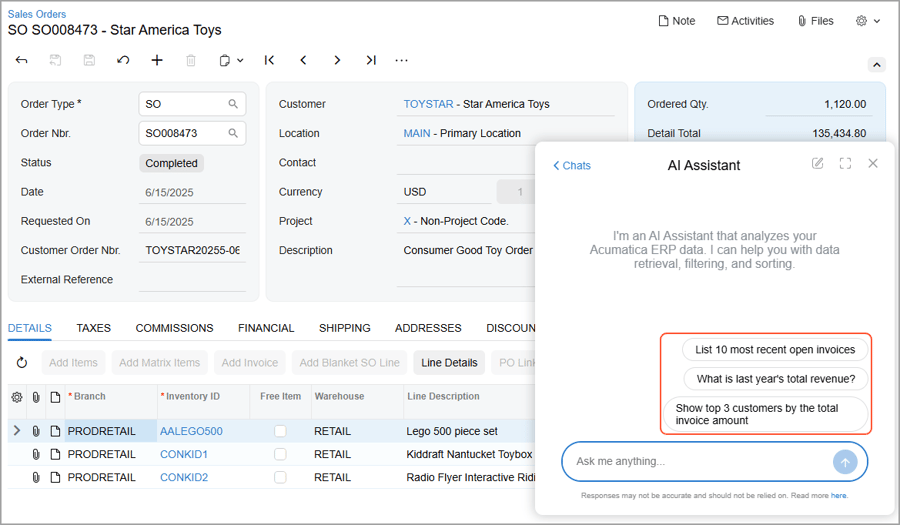
Read the answer and drill into the records
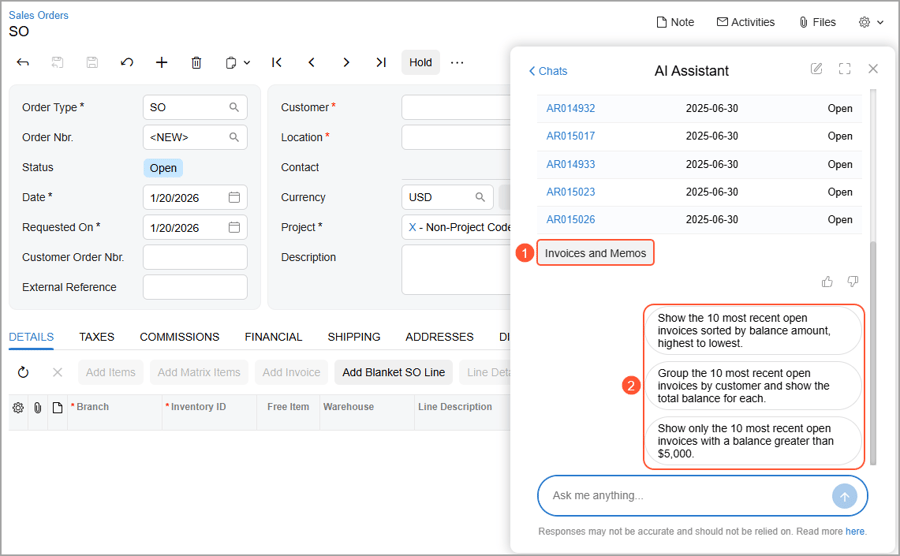
Answers appear as text, tables, charts or a mix. Any record number or name in an answer is a link: click it and the record opens in the main working area of the screen, not in the chat. You can keep working in other screens while the chat stays open, and AI Assistant won't switch chats while you do.
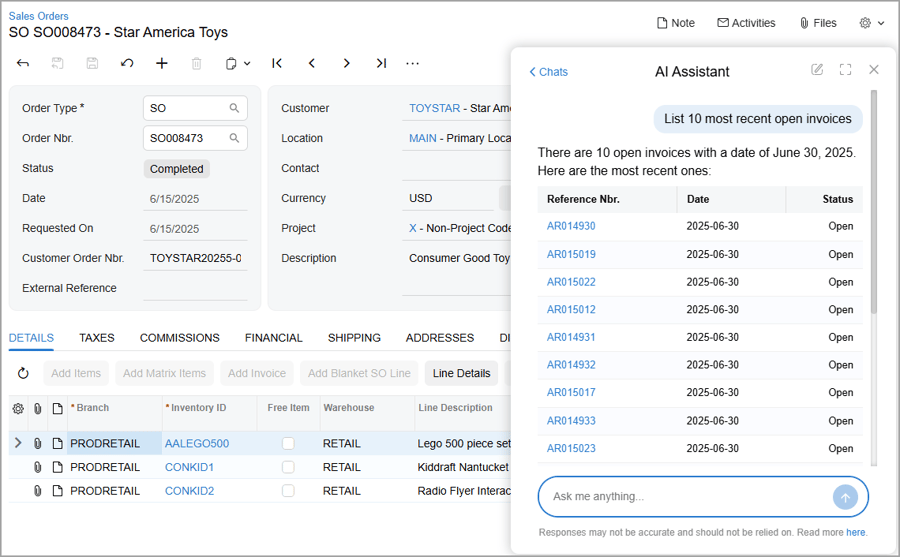
Under each answer you'll see:
- Sources: the Generic Inquiry the answer came from. Click it to open the full list of records.
- Suggested follow-up questions you can click to keep going.
- Thumbs up and thumbs down, so you can tell MYOB whether the answer was useful.
Turn answers into charts, pivots and dashboards
Where the data suits it, AI Assistant adds a chart to the answer. The bars in the chart are links to the records. Click View chart to open it as a dashboard widget.
AI Assistant can also organise data into a pivot table. Click Create Pivot to build one, or Add pivot to dashboard to keep it for later analysis.
Manage your chats
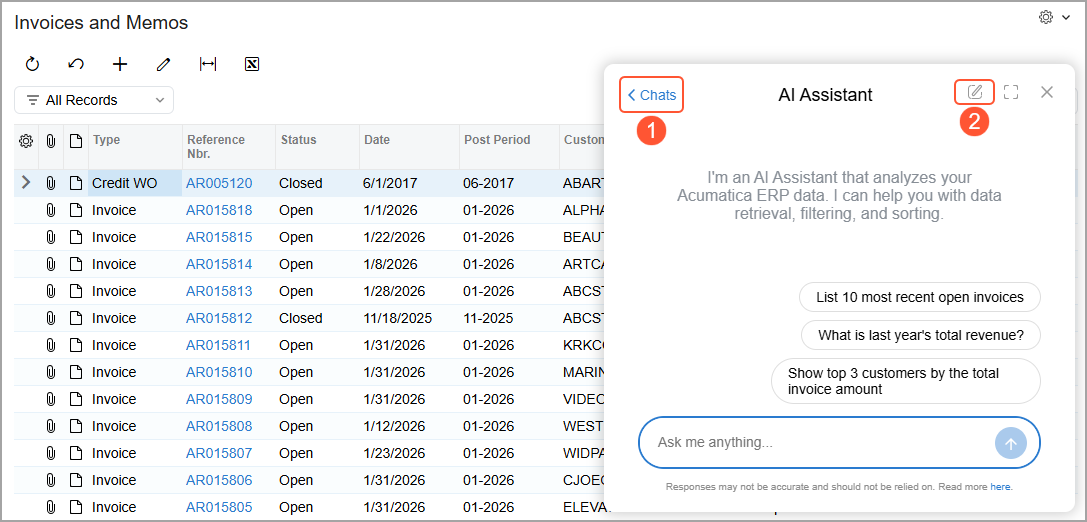
Every new question or suggested prompt starts a chat, and each chat keeps its questions and answers so you can come back to them later.
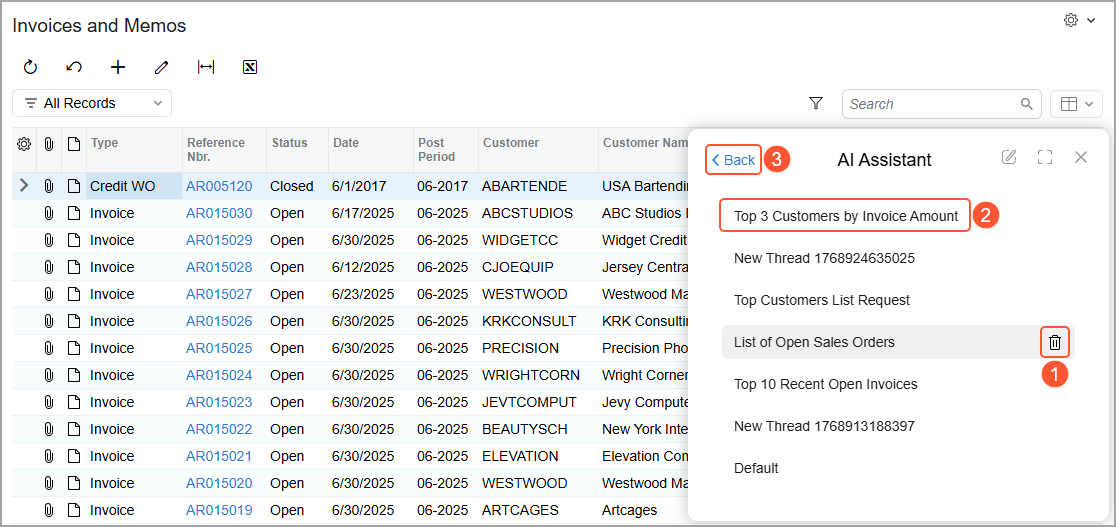
- Click Chats (top left) to see your list of chats and switch between them.
- Click the new chat icon (top right) to start a fresh chat.
- In the chat list, click the bin icon to delete a chat you no longer need. Chats are named automatically from your first question.
- Click Back to return to the chat you were in.
- Drag the edges of the window to resize it, or move it out of the way.
Tips for better answers
- Ask for a decision, not just a fact. A single answer is information. A chain of questions that ends with "so what should I do?" is where the value is.
- Stay in the same chat when you're following a thread, so AI Assistant keeps the context.
- Be specific about dates, customers, branches and statuses.
- Start a new chat when you change topic.
- Check what matters. For anything important, click through to the records before you act. The chat itself notes that responses may not be accurate, and AI Assistant is there to support your judgement, not replace it.
- Save your capacity for business questions. AI Assistant doesn't search the web, so use a general AI tool for general questions.
Questions to try
The answers you get depend on which inquiries your administrator has exposed, but these are a good place to start.
| Area | Try asking |
|---|---|
| Morning briefing (any business) | What's our cash position? What's overdue on receivables? What do we owe that's coming due? |
| Finance and collections | Who are our most overdue customers? Is this customer on credit hold? Has their payment behaviour got worse? |
| Distribution | What orders are waiting to ship? Is it stock, or just not picked yet? Is a purchase order coming in to cover it? |
| Manufacturing | Which production orders finished over cost? Was it labour, material or overhead? Are any BOM components low on stock? |
| Projects and construction | Which projects are over budget? Is it a cost overrun or stalled billing? Are there change orders that would fix it? |
| Field services | What appointments are on today? Which technician has the fullest day? |
Pricing and AI Units
AI Assistant runs on AI Units. An AI Unit is a blend of the input, output and cache tokens used across the AI models that work together to produce your answer. You don't need to understand tokens: just know that every question uses some units, and bigger, more complex questions use more.
- A minimum capacity is included. Every applicable MYOB Acumatica subscription includes a minimum amount of AI capacity, much like a subscription includes a Full User. The amount depends on your edition. Your Avanza consultant can tell you what your edition includes and what it costs.
- Capacity comes in blocks of 500 AI Units a month. You can add more blocks at any time.
- It resets every month. Unused units don't roll over.
- It's hard capped. There's no usage billing, so there's no bill shock. If you reach your limit, AI Assistant pauses until the next month or until you add capacity.
- It's licensed per site, and there's no per-user licence.
- It shows on your invoice as its own AI capacity line, so it's visible and easy to measure.
If you're an existing customer
- AI Assistant arrives with your upgrade to 2026R1 (build 26.1.200), and your edition's minimum capacity is added at that point.
- Upgrade before 1 January 2027 and your minimum capacity is free for the rest of 2026, so you can try it with no extra cost. From 1 January 2027 it's charged as normal.
- If you upgrade later, charges start from the month after your upgrade.
- If you're part-way through a multi-year agreement, talk to us about how this applies to you.
- You can choose not to activate AI Assistant for anyone. Access is always controlled by the AI Assistant User role.
Keeping an eye on usage
- Open License Maintenance (SM201510).
- On the Entitlements tab, find the AI Units line.
- Check three numbers: Limit (your capacity for the period), Usage (what's been used so far) and Available (what's left before the cap).

- It's a whole-of-site view. Usage by individual user isn't available in this release.
- AI Assistant can't answer questions about its own usage, so License Maintenance is the place to check.
- Every question uses units, whoever asks it, including support staff logged in to your site.
What happens if you run out?
The chat stops accepting new messages and asks the user to contact their system administrator, and a warning appears on the bottom toolbar. It doesn't say that capacity has run out, so administrators: if someone tells you AI Assistant has stopped responding, check License Maintenance first. You can add more blocks through us, or wait for the monthly reset.
Security and your data
- Same permissions. AI Assistant uses your existing role-based security. There's no separate security model, and it only uses inquiries and records the user is already allowed to see.
- Stored in Australia. Your data and conversation history are stored inside MYOB Acumatica, in Australia.
- Enterprise AI, not consumer AI. AI processing runs globally on the enterprise platforms of AWS (Bedrock) and Microsoft (Azure OpenAI), which is how MYOB delivers leading models, including models from Anthropic and OpenAI.
- Never used for training. Under MYOB's commercial agreements, those services process your data to produce an answer, but they can't store it or use it to train their models.
- MYOB-managed. AI Assistant uses the MYOB-managed service with MYOB's guardrails. You can't connect your own AI model to AI Assistant.
Good to know
- It's read-only. In this release AI Assistant answers questions. It doesn't create, update or post anything.
- It answers from your inquiries. It can combine information from several exposed inquiries to answer one question, but it can't create new inquiries.
- It's not a web search. It may answer a general question using the underlying model, but it doesn't search the web.
- Other AI features are counted separately. For example, AP invoice automation uses AP pages, not AI Assistant units.
- It's getting better with each release. MYOB has signalled more built-in answers in coming releases, and your thumbs up and thumbs down help shape what comes next.
Troubleshooting
| If you see this | Try this |
|---|---|
| AI Assistant isn't listed on Enable/Disable Features | The licence may not be applied to your site. We can raise it with MYOB support. |
| No AI Assistant icon in the top pane | Check the feature is enabled and the user has the AI Assistant User role, then refresh the browser. |
| No AI Description tab on the Generic Inquiry screen | Open the Generic Inquiry screen in the Modern UI. |
| AI Assistant doesn't use an inquiry you exposed | Make sure it's published to the UI, exposed, and processed on AI Assistant Data Processing. |
| Answers come from the wrong inquiry | Improve the inquiry and field descriptions using your business language, then process it again. |
| The chat stops accepting messages | Capacity may be used up. Check the AI Units line on License Maintenance. |
| Someone can't see certain data in an answer | Working as designed. AI Assistant follows each user's existing permissions. |
Frequently asked questions
What is AI Assistant in MYOB Acumatica?
AI Assistant is a chat window built into MYOB Acumatica. You ask a question in plain language and it answers from your own live data, as text, a table, a chart or a pivot table, with links to the underlying records.
Which version of MYOB Acumatica do I need for AI Assistant?
You need MYOB Acumatica 2026R1, build 26.1.200 or later. It's available on all editions except Payroll standalone, and for all user types except Employee licences.
How do I turn on AI Assistant?
Enable the AI Assistant feature on Enable/Disable Features (CS100000), expose and describe the Generic Inquiries you want it to use on Generic Inquiry (SM208000), process them on AI Assistant Data Processing (ML503010), and give users the AI Assistant User role on Users (SM201010).
Does my whole site need to use the Modern UI?
No. Only the Generic Inquiry screen (SM208000) needs to open in the Modern UI, because that's where the AI settings are.
How much does AI Assistant cost?
Every applicable subscription includes a minimum AI capacity, which depends on your edition. You can add more in blocks of 500 AI Units a month. Capacity is capped and resets monthly, so there's no usage billing. Ask your Avanza consultant what your edition includes.
Is AI Assistant free for existing customers?
If you upgrade to 2026R1 before 1 January 2027, your edition's minimum capacity is free for the rest of 2026. It's charged from 1 January 2027.
What is an AI Unit?
An AI Unit is a blend of the input, output and cache tokens used across the AI models that produce an answer. As a rough guide from MYOB, one 500-unit block supports around 11 to 18 questions a month.
What happens when we run out of AI Units?
AI Assistant stops accepting messages until the next monthly reset or until you add capacity. You won't be billed for extra usage.
Can AI Assistant see data a user isn't allowed to see?
No. AI Assistant uses your existing role-based permissions and only uses inquiries and records the user can already access.
Where is our data stored, and is it used to train AI models?
Your data and conversation history are stored in MYOB Acumatica in Australia. AI processing runs on the enterprise platforms of AWS and Microsoft, which can't store your data or use it to train their models.
Can AI Assistant change records or post transactions?
No. In this release AI Assistant is read-only. It answers questions but doesn't create, update or post anything.
Can AI Assistant create new Generic Inquiries?
No. It uses the inquiries you've exposed and can combine information from several of them, but it can't create new ones.
How Avanza can help
- Not on 2026R1 yet? Talk to us about your upgrade, and getting it done before 1 January 2027 to make the most of the free period.
- Want a hand with setup? We can enable AI Assistant, help you choose and describe the right inquiries, and set up access for your team.
- Questions about capacity? Ask your Avanza consultant what your edition includes, or about adding more.
Talk to your Avanza consultant
Avanza Solutions is an MYOB Acumatica partner in New Zealand. Product details in this article are based on MYOB documentation for MYOB Acumatica 2026R1 at the time of publishing and may change. Pricing and capacity depend on your edition and agreement; confirm the details for your business with MYOB or your Avanza Solutions consultant.