
Projects and construction received more attention than any other area in MYOB Acumatica 2026R1. Change orders now calculate GST, so the variation a client signs matches the invoice that follows. Costs can be released while the revenue side waits for owner approval, keeping work on schedule. A new Project Materials form brings the material list inside the system. And completion percentages for progress billing are calculated for you rather than estimated line by line.
A note on terminology. MYOB Acumatica uses "change order" and "change request" for what most New Zealand contractors call a variation. The mapping is direct, but it is worth flagging when you train a team.
GST on variations
In construction a variation is a legally binding amendment to the contract, and communicating the revenue impact without the tax has always risked a gap between what the client approved and what they were eventually invoiced.
From 2026R1, change orders calculate GST or sales tax on revenue budget lines. You set a tax category per line on the Revenue Budget tab of the Change Orders (PM308000) form, and review the result on a new Taxes tab. Three amounts appear in the summary area: the revenue change amount, the tax total and the change total.
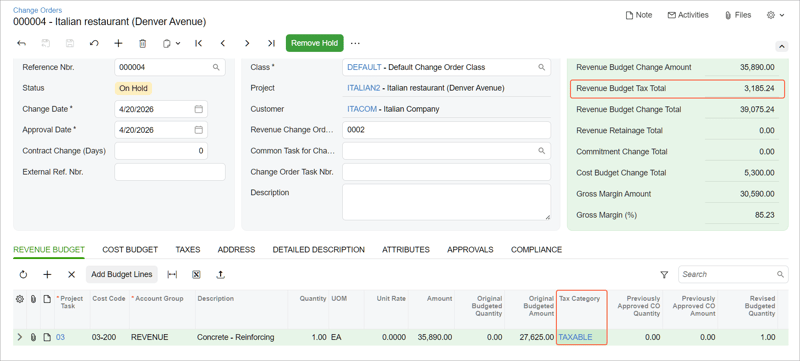
The printed Change Order (PM643000) report now carries the change order amount, tax amount and total, so the document the client signs shows the full picture.
Retentions are handled. Where the Retainage Support feature is enabled and you specify a retainage percentage on revenue budget lines, the system calculates the retained taxable amount and retained tax amount, provided the Retain Taxes check box is selected on Accounts Receivable Preferences (AR101000).
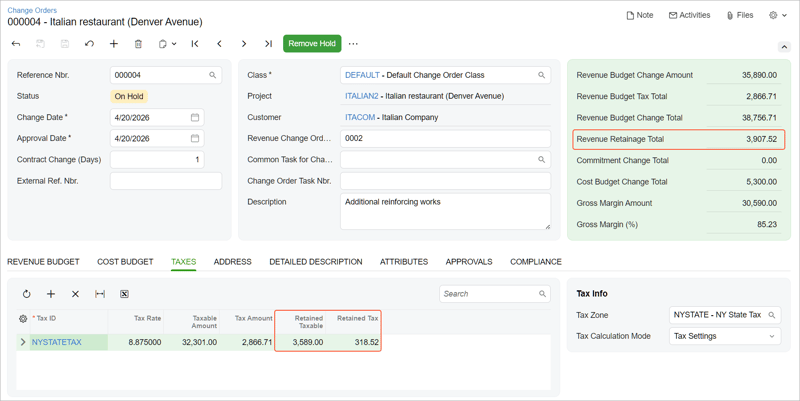
Two constraints worth knowing. Only taxes of the Sales or GST type are supported, and the functionality depends on GST Reporting for GST being enabled. Retainage of taxes is not supported where you use an external tax provider.
Gross margin on a change order is now calculated on revenue before tax, which gives a more accurate profitability read. Several elements on the printed report have also been renamed to make clear they exclude tax, so check any report customisations or client facing templates that reference the old names.
Keep work moving while approval is pending
Project teams routinely need to proceed with a variation while formal approval sits in someone's inbox.
A new Release Costs Only command on the Change Orders (PM308000) form releases the cost part of a change order independently of the revenue part. Budgeted amounts and quantities move across, commitment lines are created or updated, and the change order moves to a Cost Budget Released status. You release the revenue part when approval arrives.
The trade off is worth understanding before you use it. Once costs are released you cannot put the change order on hold or cancel it, and only the Revenue Budget tab remains editable.
Alongside this, you can now track the client's approval inside the system. A Send to Owner command emails the change order with the printed report attached and sets the status accordingly, and Mark as Accepted or Mark as Declined records the outcome. For anyone currently tracking variation approvals in a spreadsheet or an email folder, that puts the trail against the record.
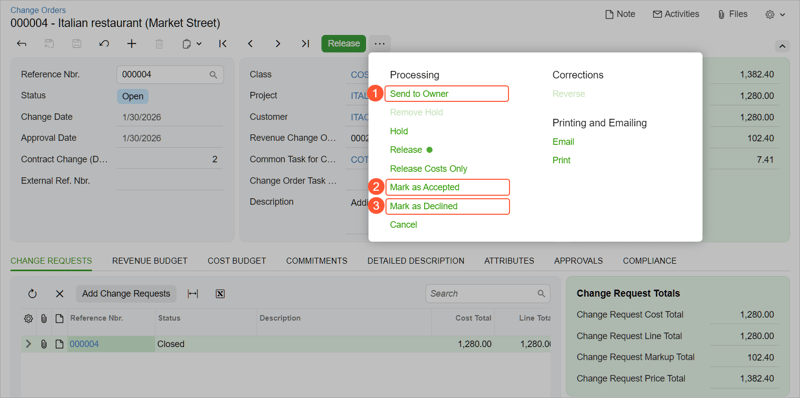
If a change order was raised in error, reversing it now unlinks its change requests and returns them to Open rather than stranding them, so you can edit them or add them to a new change order without redoing the work.
Less admin around variations
For sites using both change requests and change orders, several additions reduce the setup burden.
A dedicated project task can be created automatically when a change request or change order is saved, based on a common task you nominate as a template. Change requests and change orders now carry a sequential number within their project, which makes them far easier to discuss on site. New columns on the project's Tasks tab link a task back to the change document that created it.
Where multiple scope changes should appear to the client as a single item, revenue budget lines can be consolidated, either manually or automatically. And when you raise a change request you can now specify the commitment type up front: normal purchase order, project drop ship or subcontract. For a contractor letting work to subbies through variations, that removes a step.
All of this is available in the mobile app, so a project manager can capture a variation on site and generate the related task and commitment immediately.
Progress claims without the guesswork
Estimating and entering completion percentages across multiple revenue budget lines is tedious, inconsistent and a common cause of delayed claims.
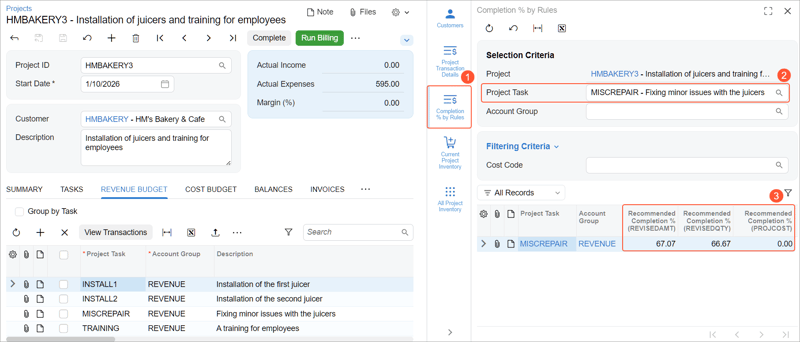
From 2026R1 the system calculates recommended completion percentages using rules you select on a new Revenue Percentage Calculation Rules (PM206500) form. Three rules ship as standard: compare actual amount with revised budgeted amount, compare actual quantity with revised budgeted quantity, or compare actual amount with projected cost at completion. You can modify them or write your own formula.
Rules are assigned at project level and flow through to project tasks, and can be set as defaults on project templates so new projects inherit them. In use you select the revenue budget lines, click Update Completion % to apply the recommendations in one action, and bill.
A Completion % by Rules side panel lets you compare what each rule would produce for a given project task before you commit to one, which is a practical way to test whether your approach holds up across different job types.
Forecast on quantities, not just dollars
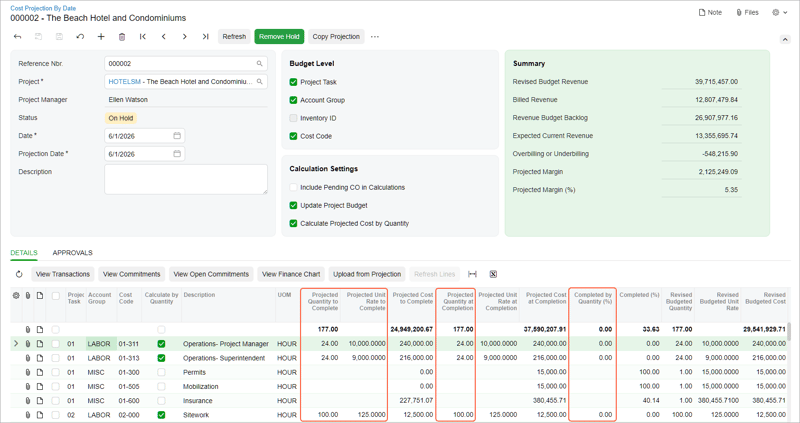
Date sensitive cost projections can now forecast on remaining quantity and projected unit rate rather than total amounts alone. You enable it on the relevant expense account groups and on the project itself, and a projection can be fully quantity based or mixed.
The scenario this handles well is a rate change mid job. If you have to bring in a new subcontractor at a higher hourly rate, you enter the new rate in Projected Unit Rate to Complete and see the effect on projected cost at completion immediately, alongside actual unit rate to date and quantity performance.
This requires the Construction feature.
Materials in one place
A new Project Materials (PM306500) form gives project teams a single place to manage materials from planning through to issue at site, replacing the common practice of keeping the list in a spreadsheet.
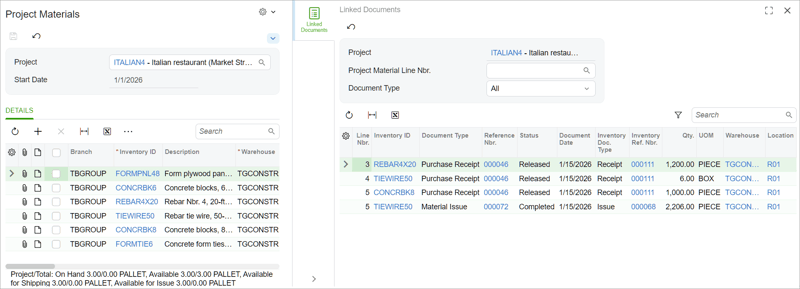
Each line links a stock or non stock item and quantity to a project task, account group and cost code, so costs track against the budget and commitments rather than being reconciled afterwards.
You can build the list from the project's cost budget lines, directly from inventory using a lookup that shows availability across warehouses, or from the estimation lines of the associated project quote. That last option matters where the quote carries more detail than the budget.
For each line you choose how it is supplied: allocate from available warehouse stock, purchase into a warehouse, or drop ship directly from the supplier to site. Purchase orders are raised from the form and grouped by supplier. Movement to site is recorded either through a project drop ship order or a new material issue document, which can be picked, packed and processed like a shipment, including printing a pick list.
Line status runs through Pending Procurement, Awaiting Delivery, Ready for Dispatch and Completed, with quantity columns at each stage.
This is the largest single addition in the release for construction, and it touches procurement, warehouse and site processes. It is worth scoping properly rather than switching on casually. It requires the Material Management and Inventory features and is available in the Modern UI.
Project documents, reorganised
Project document management has been substantially reworked. You can now define reusable tag templates so different project types carry different document structures, assign tags to multiple files at once, see line level attachments rather than just document headers, and choose what happens when a duplicate filename is uploaded.
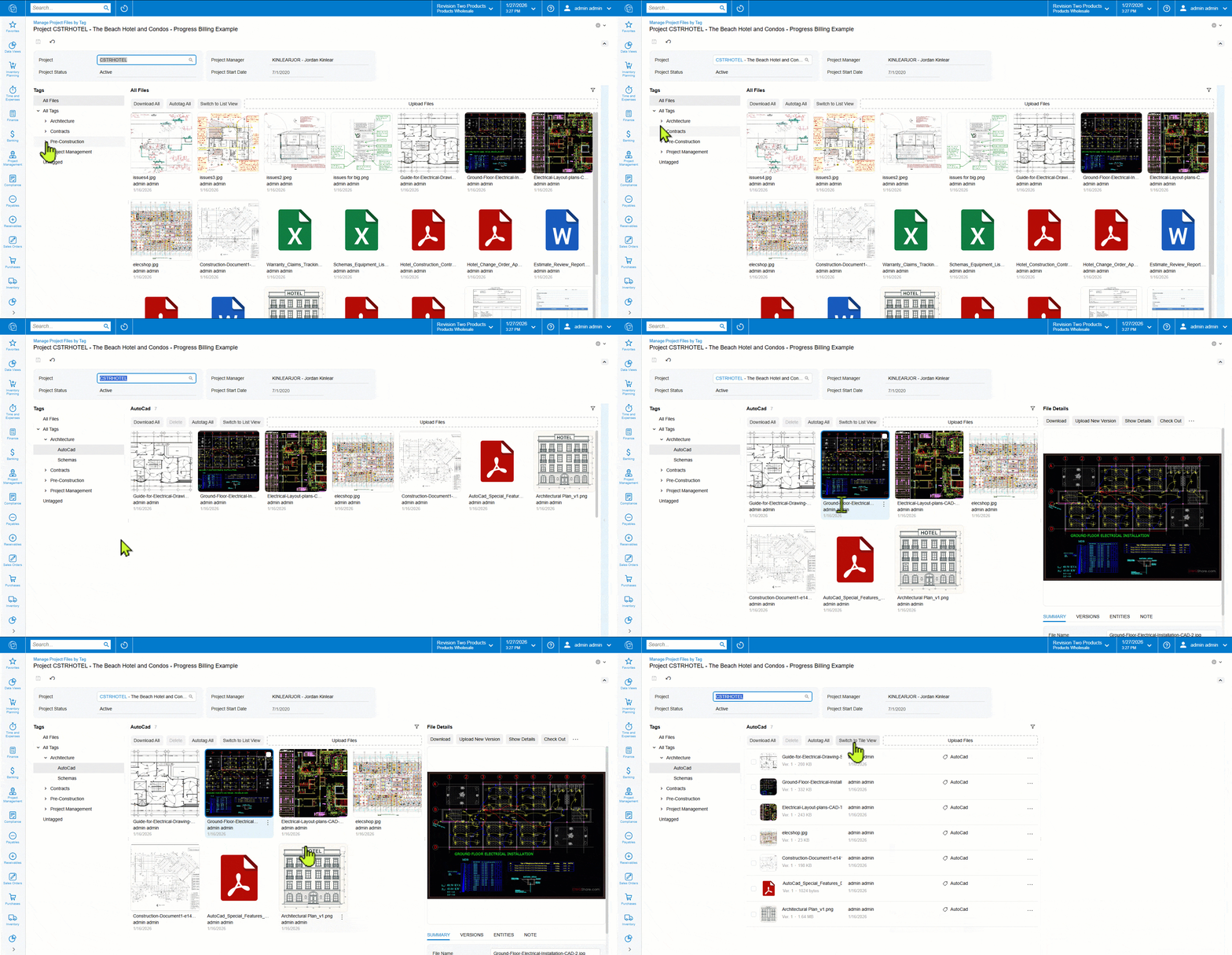
Existing project files can be linked to construction documents such as subcontracts, RFIs, submittals, drawing logs and daily field reports without creating duplicate copies.
Two additions are worth calling out. Where the AI Automation feature is enabled, a file autotagging prompt suggests a tag on upload based on file metadata, though it analyses metadata only, not file content. And where PDF Annotator Integration is enabled, you can mark up a drawing directly in the system and save it as a new version.
Professional services and time
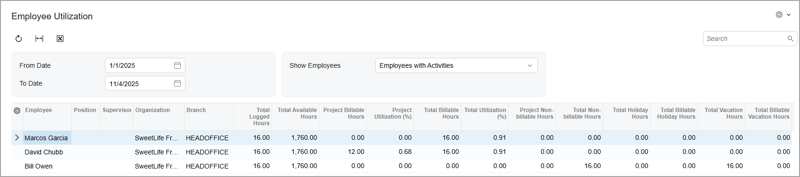
Employee utilisation is now visible on a new Employee Utilization (EP408000) inquiry, showing how time is allocated across project and non project, billable and non billable activity. Project utilisation is billable project hours over total available hours drawn from the employee's work calendar. Useful for identifying who is overloaded and who is underused before it becomes a staffing problem.
Time cards can match your payroll cycle. Weekly, biweekly, semi monthly or monthly frequencies can be set as a default and overridden per employee, so different groups can run on different cycles within one organisation.
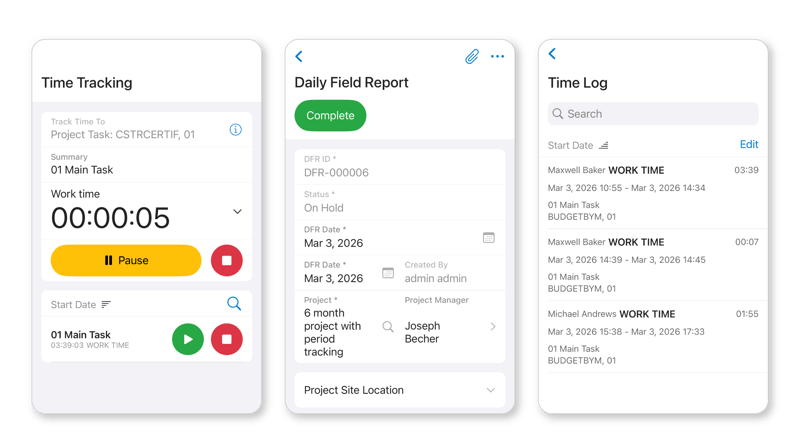
Mobile time tracking for project tasks is now available in the app. A clock icon starts a timer against a selected project task, time logs can be viewed and edited, and time activities are created from logs on the Daily Field Report (PJ304000) form or the mobile equivalents. The system creates activities only for the unrecorded portion of a log falling within the report date, so a shift running past midnight splits correctly across two days.
A new project audit inquiry gives a consolidated view of unprocessed records by project, and purchasing and AP documents can now align the project and branch automatically so costs land against the correct legal entity.
Field service
Attribute based pricing now applies to lot and serial tracked items in service orders and appointments. Where replacement components carry attributes such as model, type or warranty, and prices are set against those attribute values, technicians and dispatchers can select the right unit and have the correct price applied automatically. Note that the Add Lot/Serial Nbr. action is not available in the mobile app.
Where to start
If you run variations under retentions, the GST change alone justifies a look at this release. If your procurement runs on spreadsheets and email, the Project Materials form is the bigger prize but the bigger project. And if your progress claims are slow to get out, the completion percentage rules are the change most likely to shorten the gap between work done and claim issued.
Book a conversation if you would like help working out which of these fit your business.
Frequently asked questions
Can MYOB Acumatica calculate GST on change orders? Yes. From MYOB Acumatica 2026R1 you can calculate GST or sales tax on the revenue budget lines of a change order, using either the system's internal tax functionality or an external provider. You specify a tax category per line on the Revenue Budget tab of the Change Orders (PM308000) form and review the result on a new Taxes tab. The printed Change Order (PM643000) report includes the change order amount, tax amount and total. Only taxes of the Sales or GST type are supported, and the functionality depends on GST Reporting for GST being enabled.
Can you release the cost part of a variation before the client approves it in MYOB Acumatica? Yes. MYOB Acumatica 2026R1 adds a Release Costs Only command on the Change Orders (PM308000) form, which releases the cost budget and commitments while the revenue part waits for the project owner's approval and sets the status to Cost Budget Released. Once costs have been released the change order cannot be put on hold or cancelled, and only the Revenue Budget tab remains editable.
How does MYOB Acumatica calculate completion percentage for progress billing? From 2026R1, MYOB Acumatica calculates recommended completion percentages for revenue budget lines using rules defined on the Revenue Percentage Calculation Rules (PM206500) form. Three standard rules compare actual amount with revised budgeted amount, actual quantity with revised budgeted quantity, or actual amount with projected cost at completion. You assign a rule to a project and its tasks, then click Update Completion % to apply the recommendations in one action.
What is the Project Materials form in MYOB Acumatica? Project Materials (PM306500) is a form introduced in MYOB Acumatica 2026R1 that centralises a project's material list. Each line links a stock or non stock item and quantity to a project task, account group and cost code so costs track against the budget. You can build the list from cost budget lines, from inventory, or from project quote estimation lines, choose whether each item is allocated from stock, purchased to a warehouse or drop shipped to site, raise purchase orders, and record movement to site through a new material issue document.
View the full MYOB Acumatica 2026R1 Release notes
Avanza Solutions is a dedicated MYOB Acumatica implementation partner based in New Zealand, working extensively with construction and project based businesses. This article summarises publicly available MYOB release documentation. Feature availability depends on your edition, licensing and enabled features, and some capabilities require the Construction feature.