
Every finance team knows the feeling: thousands of transactions flowing through the general ledger, and somewhere in there, something doesn't look right. A duplicate entry. An unusually large amount. A pattern that breaks from the norm. The challenge isn't knowing these things happen — it's finding them before they become a problem.
That's exactly what Anomaly Detection in MYOB Acumatica is designed to do. Using AI, it continuously scans your financial data to flag unusual transactions, giving your team the early warning system they need to stay on top of things.
How It Works
Automated Scanning Across Your Ledger
Anomaly Detection doesn't wait for you to go looking for problems. It proactively scans general ledger entries using AI to identify transactions that deviate from expected patterns. Whether you're reviewing costs in purchase orders or running a sales order margin analysis, the system is working in the background to surface anything that warrants a closer look.
Real-Time Alerts With Severity Ratings
When something unusual is detected — a duplicate entry, an out-of-range value, an irregular pattern — the system highlights it in red and categorises it by severity. This means your team can prioritise their response, tackling the most critical issues first rather than wading through everything manually.
Less Time Reviewing, More Time Investigating
By automating the detection process, Anomaly Detection dramatically reduces the time spent on manual checks. Instead of sifting through every transaction, your finance professionals can focus their energy on investigating the flagged items that actually matter.
Getting Started
Enabling Anomaly Detection takes just a few minutes:
Step 1: Access the settings. Log in to MYOB Acumatica as an administrator and navigate to Enable/Disable Features.
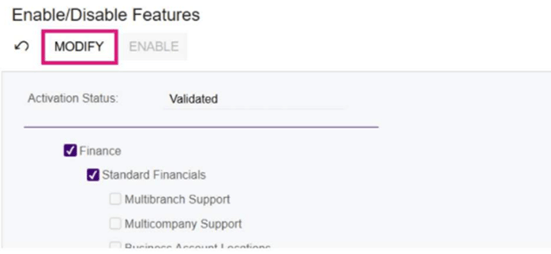
Step 2: Activate the feature. Select Modify to make the feature checkboxes editable within the Enable/Disable Features screen.
Step 3: Enable and save. Select the relevant AI features and click Enable to save your changes. That's it — the system will begin scanning your data straight away.
What Kinds of Anomalies Does It Catch?
Anomaly Detection is built to identify a range of issues across your financial data:
Duplicate transactions occur when the same entry is recorded more than once. Left unchecked, they can distort your financial statements. The system flags potential duplicates so your team can investigate and correct them promptly.
Out-of-norm values are transactions that fall outside the typical range based on historical data. These may indicate errors, fraud, or simply unusual business activity — either way, they deserve a closer look.
Unusual patterns cover entries that don't align with established trends, such as unexpected spikes, missing data, or irregular timing. Catching these early helps your organisation manage risk proactively rather than reactively.
Responding to Alerts
When the system flags a transaction, the recommended approach is straightforward: review the flagged item, investigate the underlying cause, and document your findings. Timely response and thorough documentation not only keep you compliant but also help prevent similar issues down the track.
Why It Matters
Proactive anomaly detection strengthens your financial integrity without adding to your team's workload. It's about catching the things that would otherwise slip through the cracks — and doing so automatically, consistently, and early.
Watch our step-by-step demonstration video to see how Anomaly Detection works in MYOB Acumatica.
Turning on MYOB Acumatica's AI features
Before you can start using MYOB Acumatica's AI features, you need to go to the Enable/Disable Features screen (CS100000) and turn them on.
Log in to MYOB Acumatica as an administrator, and go to Enable/Disable Features (CS100000).
-
Click Modify.
The feature tickboxes become active.
-
Select all of the following features:
- Image Recognition for Expense Receipts
- AP Document Recognition Service
- Experimental Features
- Intelligent Text Completion
- Detection of Numberic Anomalies in Generic Inquiries
-
Click Enable to save the changes.
You're ready to start using the new features! For your next steps, see:
Getting started with intelligent text completion
Getting started with AP document recognition
Getting started with image recognition for expense receipts
Getting started with anomaly detection in generic inquiries